
Free
Free use
Use every feature freely before purchasing a license. Only saving is disabled.
$0 USD
No license required
Projection mapping guide workflow
Create high-resolution projector guide images, arrange complex screen layouts, and verify projector placement in a 3D scene before installation.
Before purchasing a license, every feature remains available except saving.
MediaSyncGuide organizes the practical projection mapping workflow from reference image generation to installation preview and project sharing.
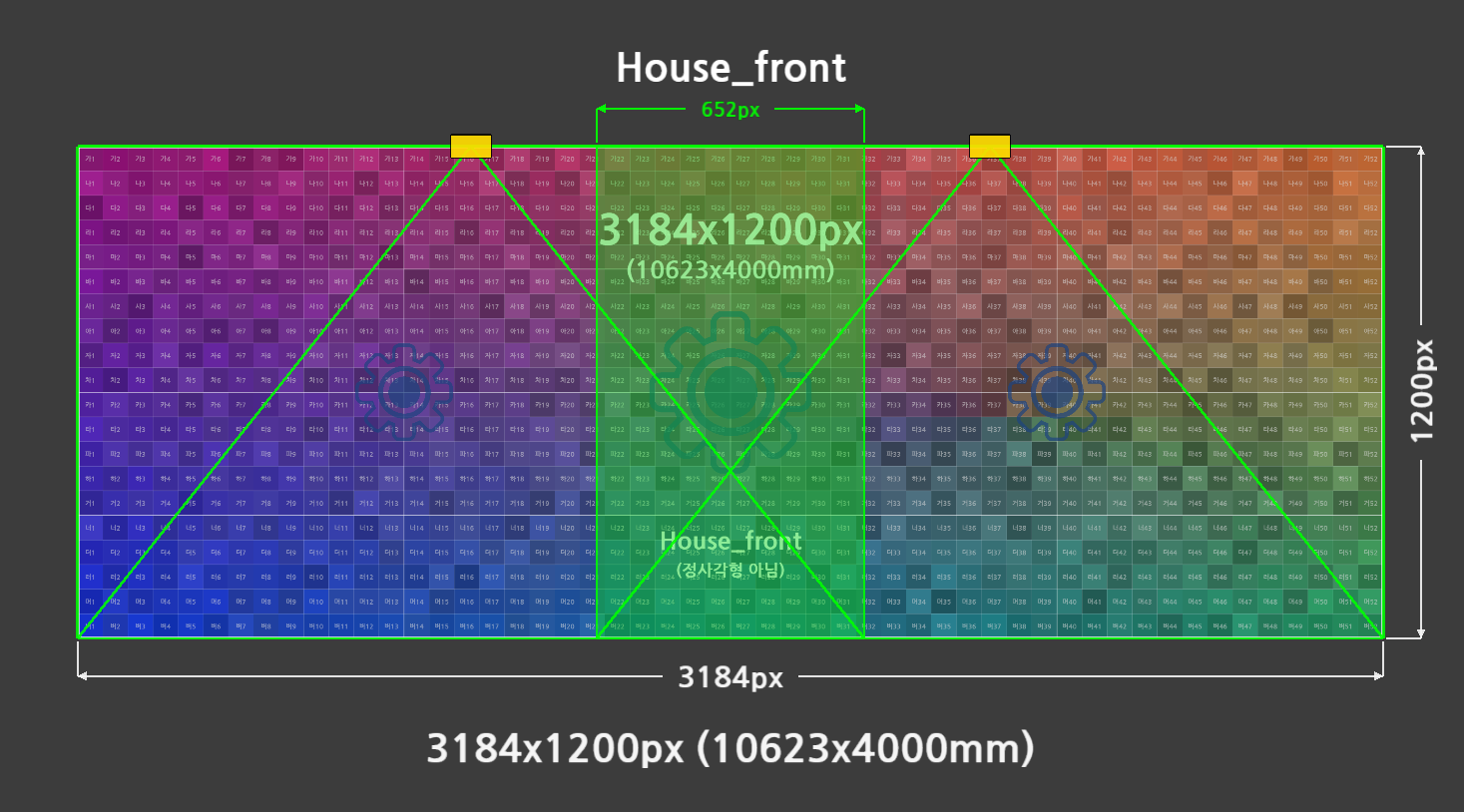
Generate PNG guide images with physical size, resolution, grid, center lines, labels, outlines, dimensions, masks, and reference images.
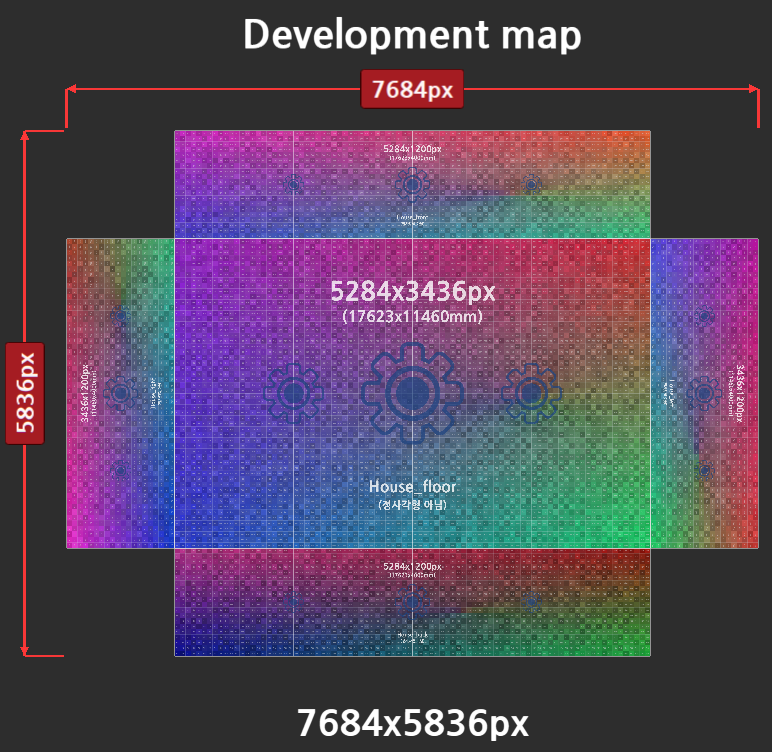
Place multiple guide images or external images, adjust position, scale, rotation, opacity, snapping, and output bounds.
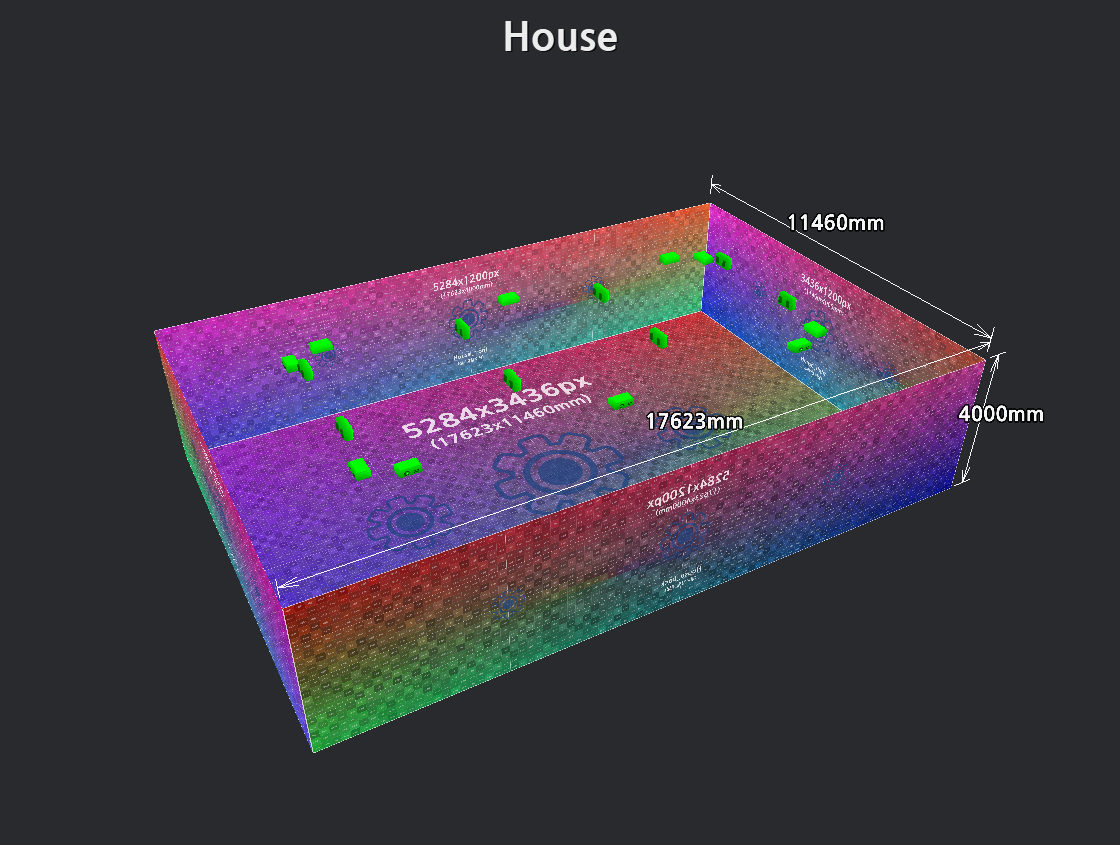
Build planes, curved surfaces, boxes, cylinders, horseshoes, OBJ/DXF meshes, projectors, cameras, annotations, and dimension tools in one scene.
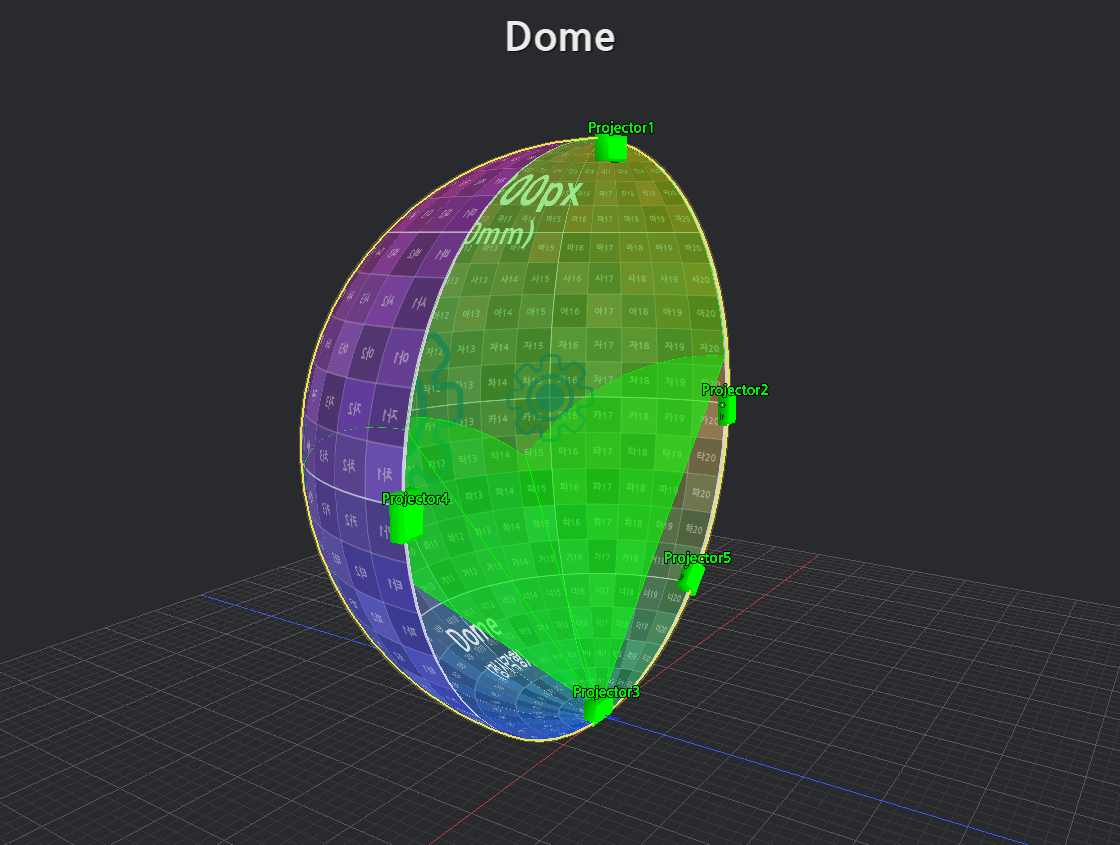
Use projector split settings, auto layout, throw ratio, floor projection options, and effective resolution checks before production begins.
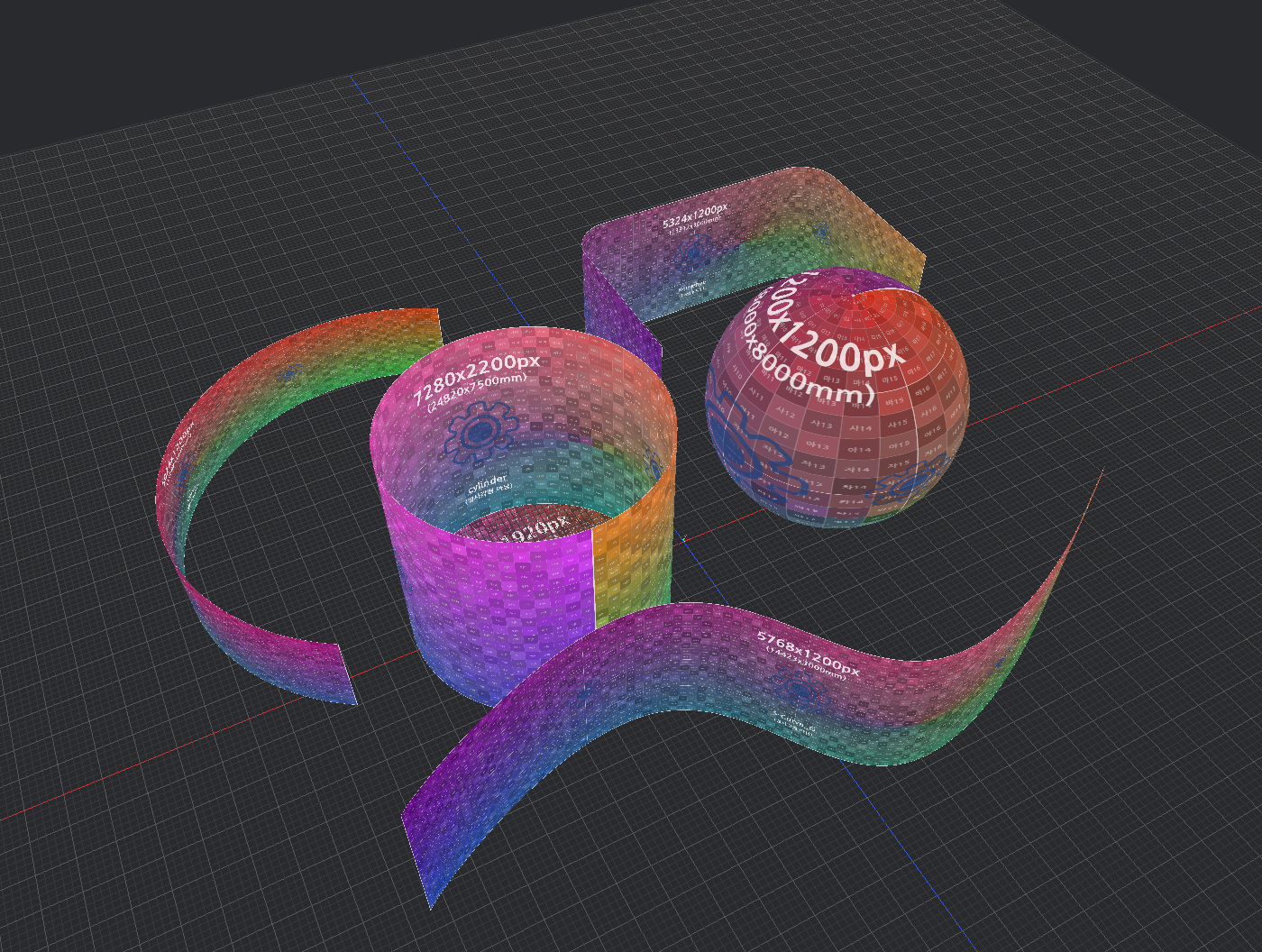
Create planes, rounded planes, cylinders, boxes, spheres, horseshoes, L-shaped surfaces, OBJ/DXF meshes, curves, and distance objects.

Use image, movie, Spout, and NDI texture sources for projectors, cameras, and supported 3D objects during preview.

Export guide PNGs, Canvas outputs, and OBJ/FBX/USD scene data for connected workflows.

Save MGS projects, export resource-included bundles, or create portable packages so reviewers can inspect shared projects without a MediaSyncGuide license.

Create a share link so collaborators can review projection surfaces, projector layouts, frustums, and dimensions directly in a web browser without installing the program or purchasing a license.
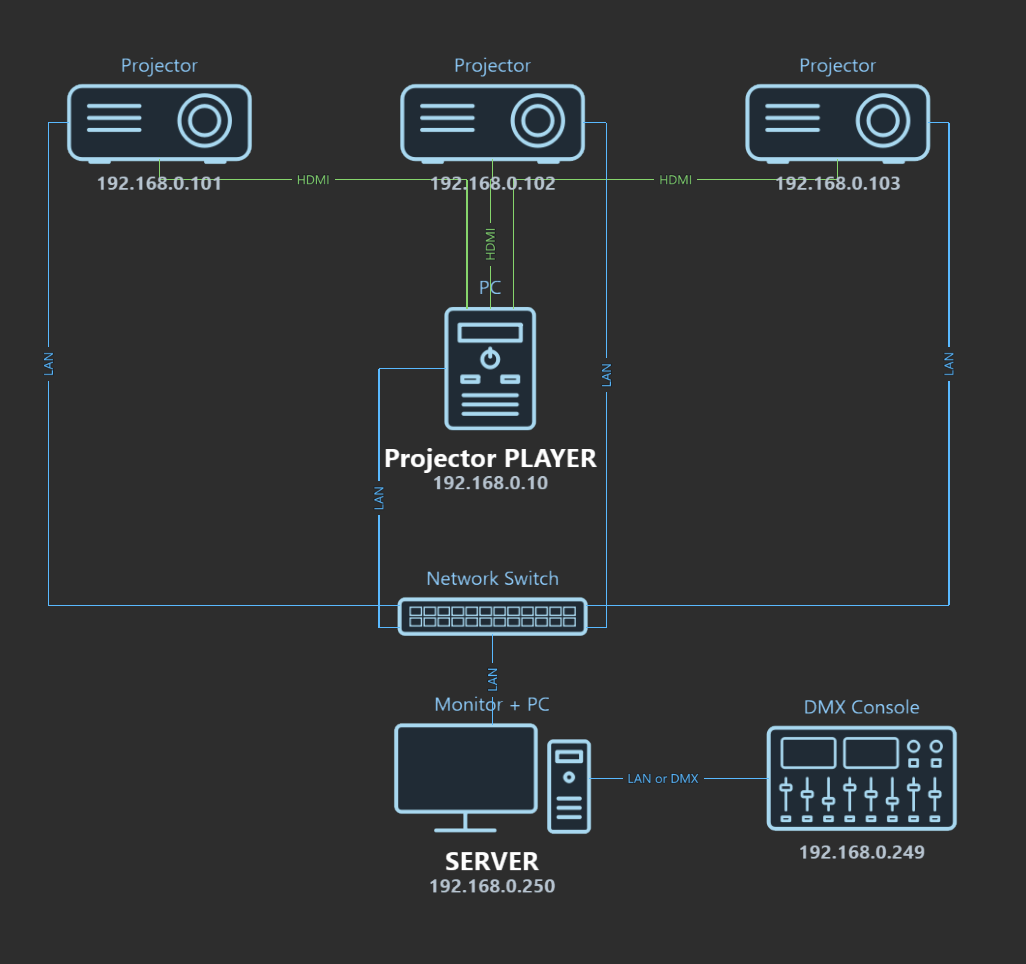
Create system diagrams with displays, projectors, players, servers, and network equipment. Show DP, HDMI, and LAN connections alongside device IP addresses to communicate the system layout for installation and collaboration.
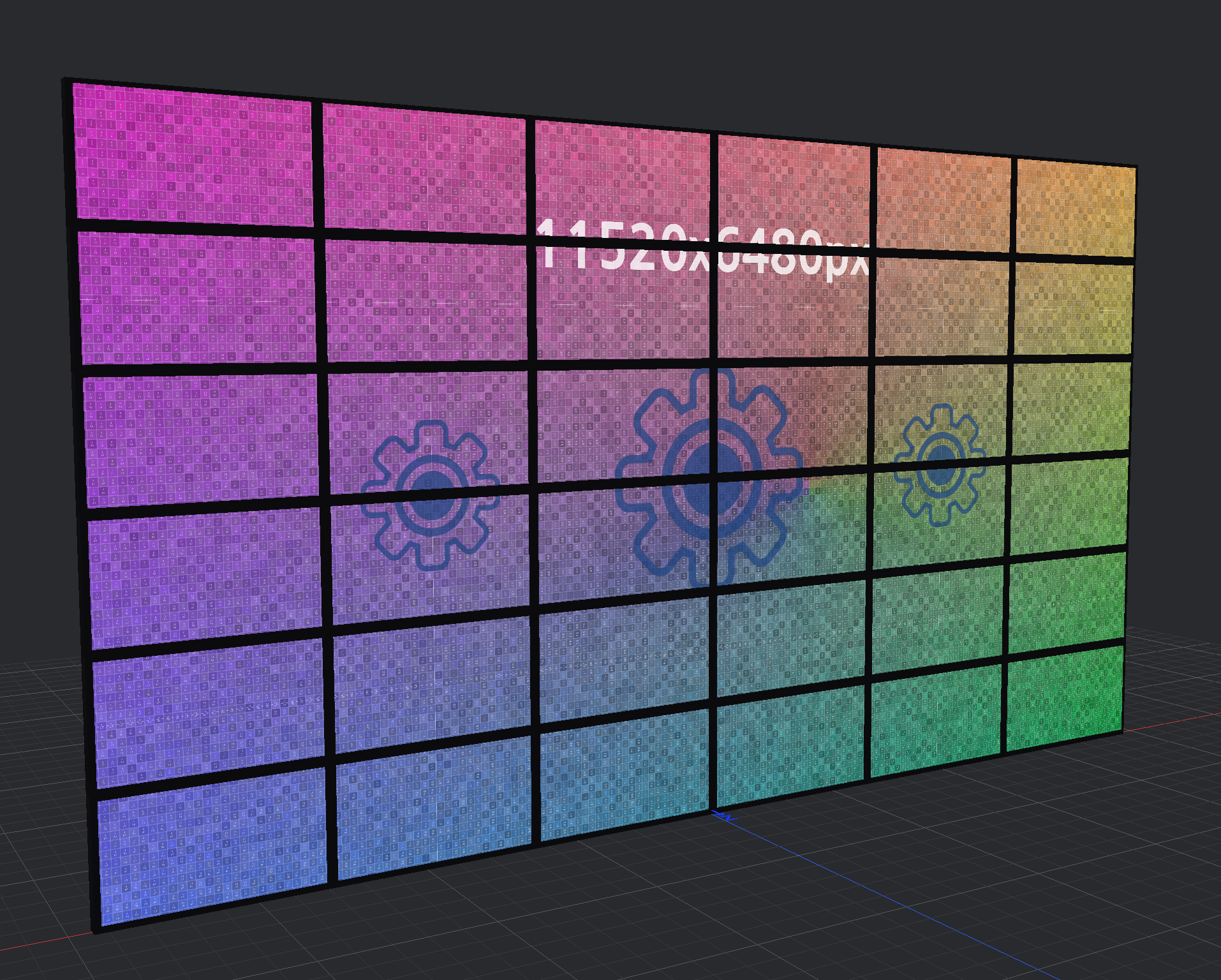
Arrange multiple displays into a large video wall and review the screen layout, bezel gaps, and overall resolution in 3D. Apply a guide image to preview how content spans the individual screens before installation.
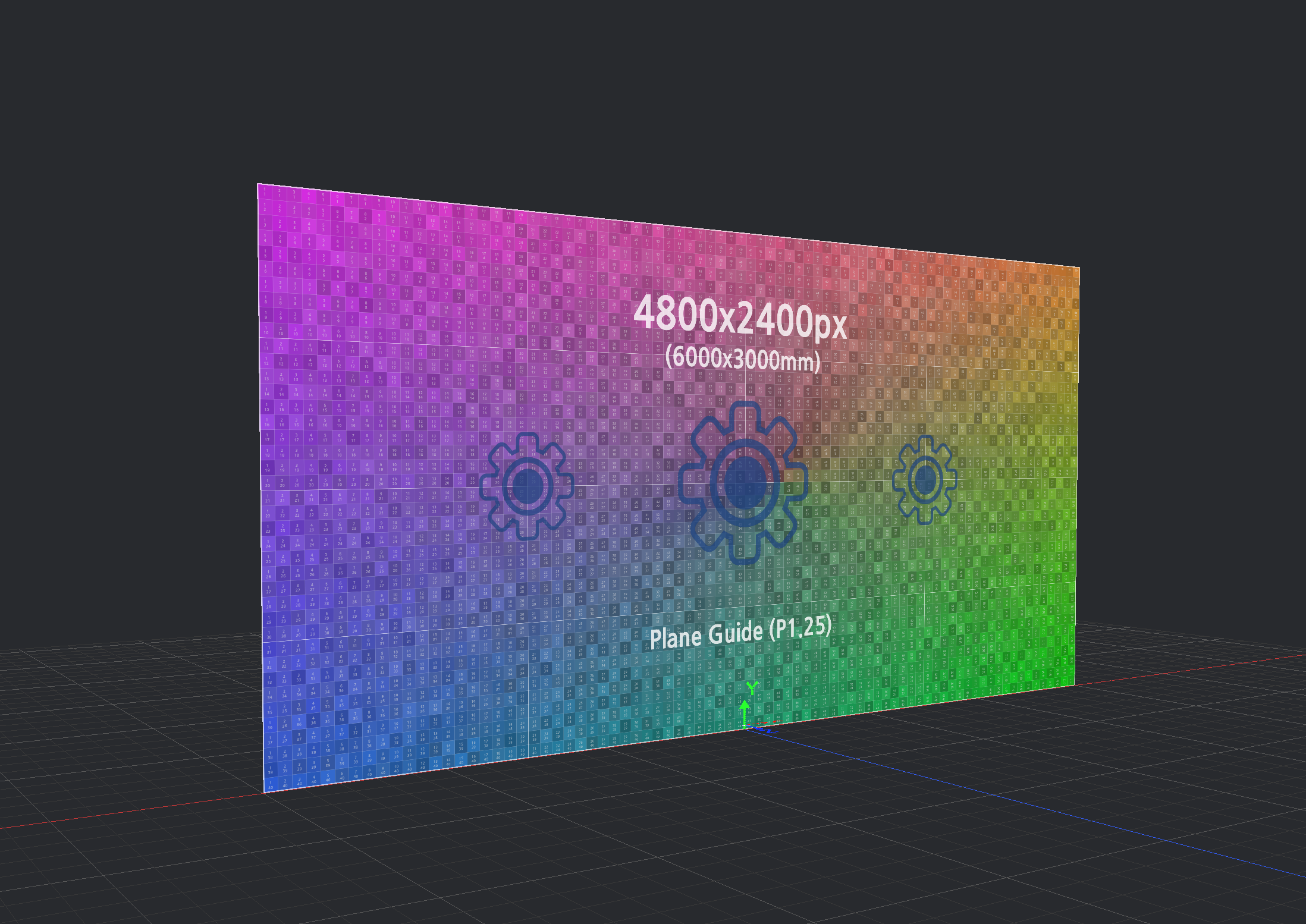
Create production guides based on the physical size, pixel pitch, and overall resolution of an LED screen. Display grid and dimension information, then review screen proportions and content in a 3D scene before installation.